
Student Orientation
Edit Your Moodle Profile
Your Moodle Profile page can be viewed only by certain other individuals. For example, students cannot view each other's profiles, but an instructor can view the profiles of the students enrolled in a course they are teaching. They are also very useful for making sure a photo travels with a user wherever they post—a social way to engage with other Moodle users.
Profile settings also impact privacy to some degree. You can choose to hide your email address from others, or choose to upload a photo to display when you contribute to a forum.

- From the User menu (top-right), select Profile. Your Profile page opens.
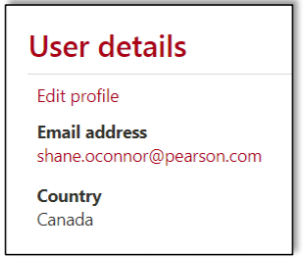
- On your Profile page under User details, click Edit profile (at right). The Edit profile page opens.
- On the Edit profile page, we recommend you consider the following settings:
- From the Email display drop-down menu choose between:
- Hide my email address from everyone: Students cannot hide emails from teachers, but this will hide your email from other students. Note: Hiding your email address does not prevent Moodle from sending you emails; it prevents other Moodle users from seeing your email address. Messages sent by you through Moodle will be "From" and have a reply-to address of <noreply@moodle.umass.edu>.
- Allow everyone (in Moodle) to see my email address: This can't really happen, but the setting is there. It is essentially the same as fhe next option (Allow only people in your courses to see my email address).
- Allow only people in my courses to see my email address (default).
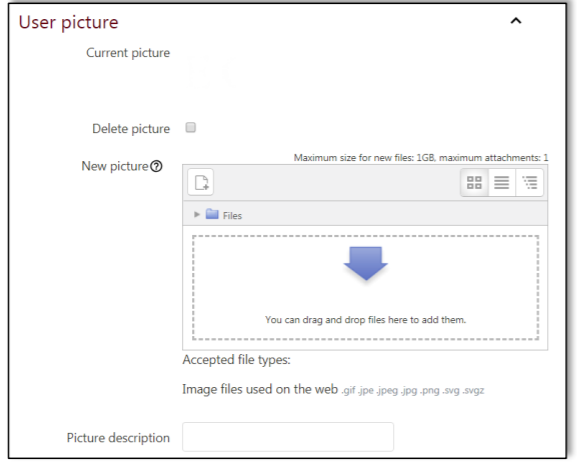
- To display a person avatar that will display in discussion posts, click the User Picture heading to expand the page and upload an image file.
- From the Email display drop-down menu choose between:
- To save changes to settings, click Update profile. You'll be returned to your Profile page.
Edit Your Moodle Preferences
Your Moodle Preferences determine whether forum subscriptions are sent as one daily email digest or as separate emails, and more.
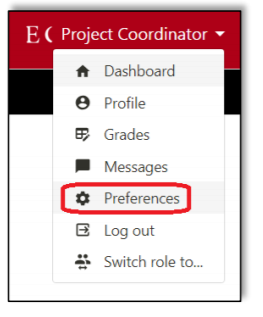
- From the User menu (top right), select Preferences. Your Preferences page opens.
- On your Preferences page, under User account, you will find several links. We strongly recommend only editing Forum preferences. Click Forum preferences.
- On the Forum preferences page, you may wish to adjust the following settings:
- To control email notifications from Forums you subscribe to, from the Email digest type drop-down menu choose between:
- No digest (single email per forum post) (default)
By default, you'll receive an email every time a classmate or instructor posts to a discussion you are subscribed to. - Complete (daily email with full posts).
- Subjects (daily email with subjects only).
Digest emails are sent at approximately 5 p.m. each day and compile notifications from all your courses in Moodle.
- No digest (single email per forum post) (default)
- The Forum auto-subscribe setting determines whether you will automatically be subscribed and receive emails when new posts are made to forums in which you have participated. To avoid inbox overload, we recommend the default setting:
- No: don't automatically subscribe me to forums discussions.
- The Forum tracking setting helps you to see which posts you have not yet viewed in a forum. We recommend the default setting:
- Yes: highlight new posts for me.
- To control email notifications from Forums you subscribe to, from the Email digest type drop-down menu choose between:
- At the bottom of the page, click Save changes.